
FY19 Spring Enhancements
This help page details the changes to the HHS Access Management System (AMS).
AMS Mobile Login Page:
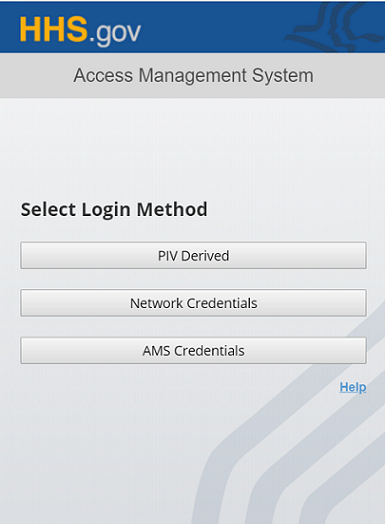
The new AMS Mobile UI includes three login options to mirror the three tabs in the AMS desktop version: PIV Derived, Network Credentials and AMS Credentials.
Users with an HSPD-12 Access Card will be able to select a certificate on their phone by choosing the PIV Derived login option. The HHS Terms of Service and Privacy Policy will now open in a window when the user clicks the Login button, at which point users will have to click Agree, similar to the desktop login. Instructions for logging in with PIV Derived credentials via mobile can be found by clicking the "Help" link on the AMS Mobile Login page, then selecting the "How to?" option and the "How to Log into AMS using PIV Derived Credentials" or "How to Access an Application using PIV Derived Credentials" link.
Network Credentials Login Tab:
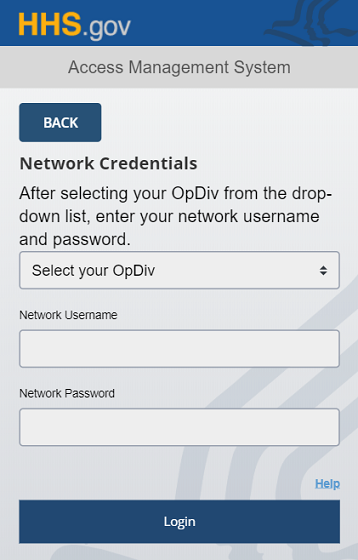
The existing overall process to log in using your network credentials has not changed. If you work for ACF, ACL, AHRQ, CDC/ATSDR, CMS, HRSA, IHS, NIH, OIG, OS, PSC, or SAMHSA, you may log into AMS via a mobile device using your network credentials. The HHS Terms of Service and Privacy Policy will now open in a window when the user clicks the Login button, at which point users will have to click Agree, similar to the desktop login (note: except for NIH users). Instructions for logging in with Network Credentials via Mobile can be found by clicking the "Help" link on the AMS Mobile Login page, then selecting the "How to?" option and the "How to Log into AMS with your Network Username and Password" or "How to Log into AMS with your NIH Credentials" link.
AMS Credentials Login Tab:
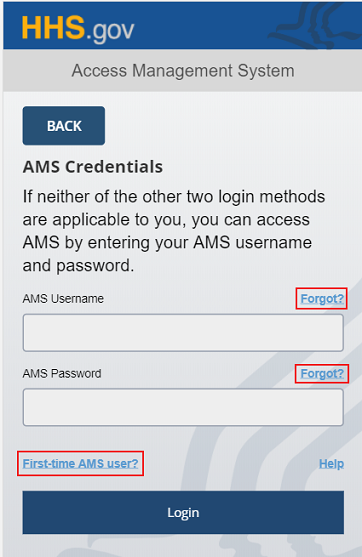
The overall process to log in using your AMS credentials has not changed. You may continue to log into AMS using your AMS username and password via a mobile device. The HHS Terms of Service and Privacy Policy will now open in a window when the user clicks the Login button, at which point users will have to click Agree, similar to the desktop login. Links to the Forgot your AMS Username or Password, and First-time AMS User workflows are now included in the mobile login page. Additionally, mobile users will be able to re-enable their profile or change an expired password after login through mobile workflows. These options were previously only available through the desktop version of AMS. Instructions for logging in with AMS Credentials via Mobile can be found by clicking the "Help" link on the AMS Mobile Login page, under the "How To?" tab.
AMS CSP Integration External User Login:
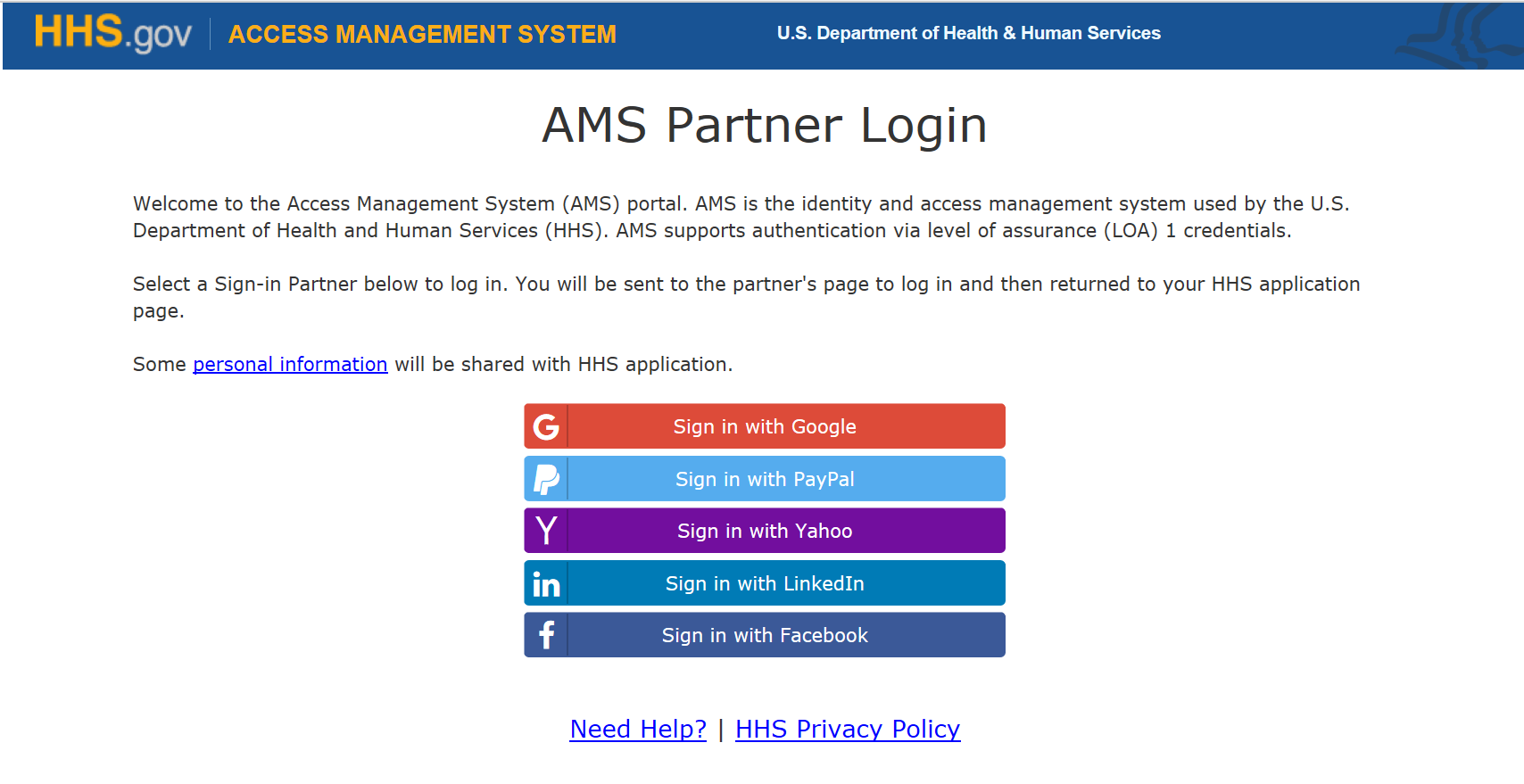
In addition to previously integrated CSPs Google, PayPal and Yahoo, the new AMS enhancements include additional CSP integrations of LinkedIn and Facebook to support HRSA EHB LOA1 access. External users needing to access certain applications will navigate to the application URL and will be directed to the AMS Partner Login page displaying five external login options. Users will select their preferred Sign-in Partner from the list and will then be taken to that service provider’s login page. After successful authentication, users will have to accept the CSP terms and conditions before being redirected to the target application. Instructions for logging into AMS with a CSP Account are found in the How to Log into AMS with Your Credential Service Provider (CSP) Account and How to Log into AMS with Your Credential Service Provider (CSP) Account Using Multi-Factor Authentication (MFA) job-aids.
User Management Manual Password Reset:
Admins assigned the T2Pwd<OpDiv>:<Affiliate> role will have the ability to reset the password of users from their OpDiv and Affiliate manually through the User Management workflow with the manual password reset option. This role is an additional role that must be requested on the Role Request Form. Users with this role may only update for the requested OpDiv Affiliate combination only.
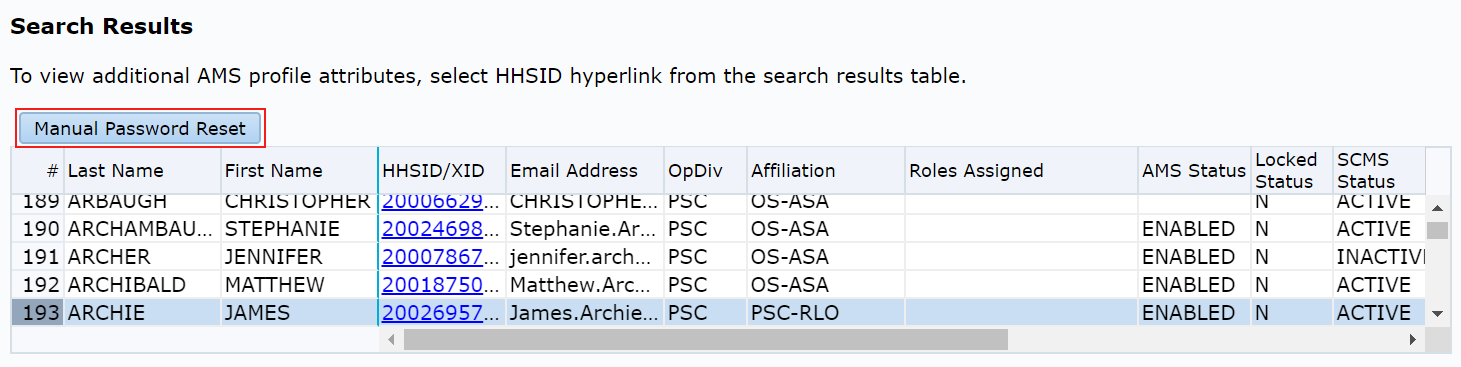
The Tier-2 Administrator - User management functions allows to perform typical helpdesk task such as unlocking accounts, password resets, delinking OpDiv credentials, enabling disabled profiles and checking user status. Instructions for performing Tier 2 Administrator – User Management functions can be found in the Tier 2 Administrator - User Management job-aid.
AMS Login Frequently Asked Questions
What does this mean for me?
Users will still be able to access AMS via a mobile device, now with new functionality options. Additionally, external users may now access certain applications with Facebook or LinkedIn credentials. Overall, the enhancements contain minimal impact to AMS functionality.
Who will be impacted?
All users who log into AMS through a mobile device to access their respective applications are impacted by the new layout. However, there is no impact to how they access their applications once logged into AMS.
What has changed on the AMS Login Page?
The mobile login page has changed aesthetically with some new functionality
- Options for Forgot AMS Username, Forgot AMS Password and First-time AMS User are now available on the AMS Mobile Login Page.
How do I complete workflows on AMS Mobile?
For help completing workflows on the AMS mobile-friendly interface, select the "Help" link at the bottom of the AMS login page from your mobile device, then the "How to?" tab. Here you can find job-aids for the available AMS mobile-friendly user workflows.